

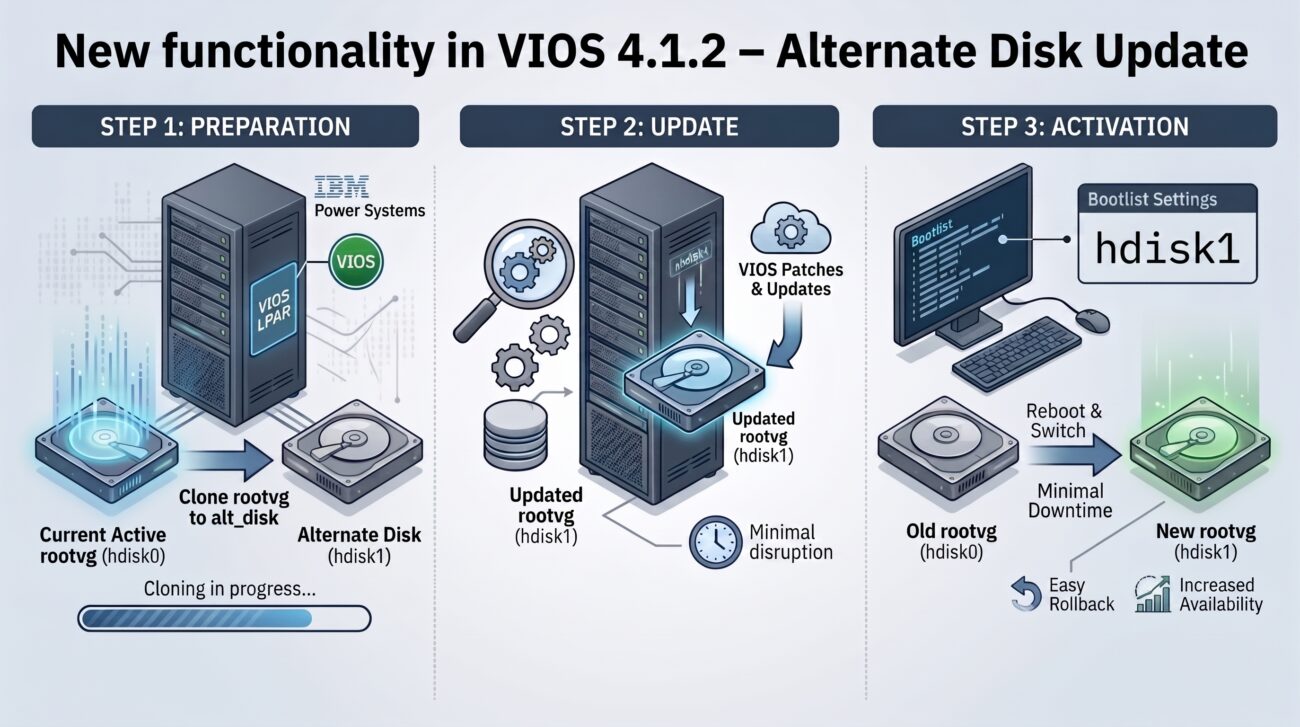
For years, PowerVM administrators have had to live with a certain inconsistency. Anyone who manages AIX on a daily basis appreciates the convenience of the alt_disk_install / alt_disk_copy mechanism—the ability to update the system on a separate disk and switch instances only upon reboot. In the case of VIOS, we had to go without it for a long time, applying updates directly on a “live system.” True, you could previously back up rootvg using the alt_root_vg command, which allowed for a quick fallback in case of failure, but the update process itself always interfered with the active environment. With VIOS version 4.1.2.0, IBM takes a great step forward by introducing native support for system updates on an alternate disk.
updateios new option -altdisk
The -altdisk option has been added to the updateios command. This allows us to perform a system update on an alternate disk while leaving the active rootvg untouched. If the update fails, the active system remains intact, eliminating the need to restore from a backup. Rolling back to the previous system version is also significantly faster compared to traditional update methods.
-altdisk
Specifies one or more alternative disks on which the updateios operation is performed. The values must be separated by a colon (:).
New feature in practice
I decided to test how this feature works in practice. For this purpose, I used:
- VIOS 4.1.2.0 (the first version introducing this functionality),
- VIOS 4.1.2.20 update package,
- an additional disk dedicated to the installation.
The syntax of the updateios command for updates using an alternate disk is very simple. To do this, use the -altdisk option, specifying one or more disks separated by a colon (:).
$ updateios -dev /install/VIOS_4.1.2.20 -install -accept -altdisk hdisk1After running the command, the cloning of rootvg begins:
Calling mkszfile to create new /image.data file.
Checking disk sizes.
Creating cloned rootvg volume group and associated logical volumes.
Creating logical volume alt_hd5.
Creating logical volume alt_hd6.
Creating logical volume alt_hd8.
...
Creating /alt_inst/ file system.
Creating /alt_inst/admin file system.
Creating /alt_inst/home file system.
Creating /alt_inst/opt file system.
...

*******************************************************************************

installp PREVIEW: installation will not actually occur.

*******************************************************************************

...

Fixing LV control blocks...

Fixing file system superblocks...
As seen in the shortened listing, the process looks very similar to the standard update procedure known from AIX. Once the operation is complete, a new altinst_rootvg volume appears in the system:
$ lspv -field Name VG STATUS

NAME             VG               STATUS
hdisk0           rootvg           active
hdisk1           altinst_rootvg
Once the process is complete, the boot list is automatically switched to the new disk:
$ bootlist -mode normal -ls

hdisk1 blv=hd5 pathid=0
This means that after a reboot, the system will start from the newly created rootvg.
Reboot and Activation of the New System Version
Before rebooting:
$ ioslevel

4.1.2.00
After rebooting:
$ ioslevel

4.1.2.20

$ lspv -field Name VG STATUS

NAME             VG               STATUS
hdisk0           old_rootvg
hdisk1           rootvg           active

$ bootlist -mode normal -ls

hdisk1 blv=hd5 pathid=0
As in AIX systems, the previous rootvg is not deleted—during the first boot after the update, it is automatically renamed to old_rootvg. This is one of the greatest advantages of this mechanism, as it allows for an instant rollback without restoring from a backup. If there is a need to revert to an older version of VIOS, simply change the boot list to the previous disk and reboot the system.
$ bootlist -mode normal hdisk0
$ shutdown -restart
After rebooting, the system will start from the previous version of VIOS. Compared to a traditional update, this significantly reduces the time needed to restore a working environment, since the rollback is limited to changing the boot list and performing a reboot.
If you no longer need the previous system copy, it can be removed using the alt_root_vg command:
$ alt_root_vg -remove old_rootvg
Volume group has been successfully deleted.

$ lspv -field Name VG STATUS
NAME             VG               STATUS
hdisk0           None
hdisk1           rootvg           active
Known Limitations for Versions 4.1.2.0 and 4.1.2.10
If you plan to use this type of update on VIOS versions 4.1.2.0 and 4.1.2.10, applying the appropriate fixes is mandatory. Without them, the following issues may occur:
- update on NVMe disks may fail,
- for SAS/SAN disks, the
bosbootoperation may not complete correctly.
IBM has released the following fixes:
- IJ59424 (https://www.ibm.com/support/pages/apar/IJ59424)
- IJ59448 (https://www.ibm.com/support/pages/apar/IJ59448)
More information on issues when using updateios with -altdisk: https://www.ibm.com/support/pages/node/7281832
The functionality works correctly without the need to install additional fixes starting only from version 4.1.2.20.
Summary
The addition of alternate disk support to the updateios command is one of the most interesting changes introduced in VIOS 4.1.2.0. The update can be prepared on a separate disk without impacting the running system, and activating the new version simply comes down to rebooting the server.
An even greater advantage is the ability to perform an instant rollback. As long as the disk containing old_rootvg is preserved, reverting to the previous system version requires only changing the boot list and rebooting. This mechanism has proven itself in AIX environments for many years. Its appearance in VIOS significantly simplifies the update process and reduces the risks associated with maintaining a key component of the IBM Power platform.